IsoBox

How to use IsoBox

Short guides to each part of the app. Every screen in the app also has a ? button with help.

Getting your music in

  • Open Files ▸ On My iPhone ▸ IsoBox and copy your Artist folders in. AirDrop, iCloud Drive or a USB drive all work. On a Mac, connect the phone and drag folders onto it in Finder.
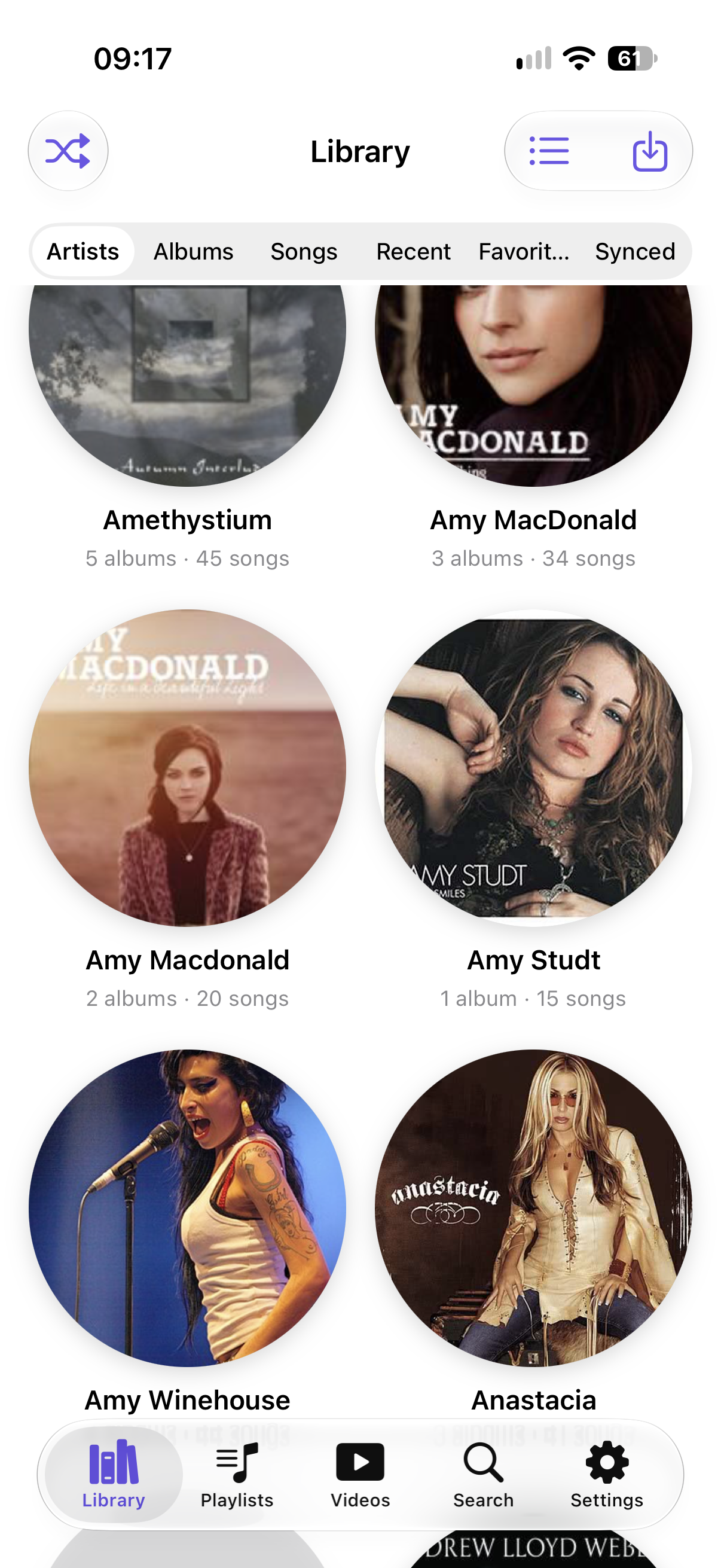
  • Or use the Import menu in the Library tab: pick files, or import songs by Artist or Album from your Music library (the album cover comes across too).
  • To share songs with another phone running IsoBox, use Settings ▸ Send/Receive Music on both.
IsoBox only reads songs you own. Songs that are streaming-only in the Music app can’t be imported.
Getting your music in

Library and Now Playing

  • Browse Artists, then Albums, then Songs. Search finds songs by title, album or artist. Swipe left on a song to delete it from IsoBox’s own folder (songs in another folder or disk are never deleted).
  • Tap a song to open Now Playing: album art, scrubber and controls. Playback carries on in the background and from the lock screen.
  • The Lyrics button opens the practice page, where most of the tools live.
Library and Now Playing

Speed, key and loops

  • Speed slows a song down or speeds it up without changing the pitch, and transposes it in semitones and cents.
  • Loop A and Loop B mark a section; Loop On repeats it. Loop points are remembered per song.
  • Practice saves loop, speed and key as presets, and the speed trainer raises the speed a little on every pass until you reach your target.
Speed and key apply only to the song you set them on.
Speed, key and loops

Splitting a song into parts

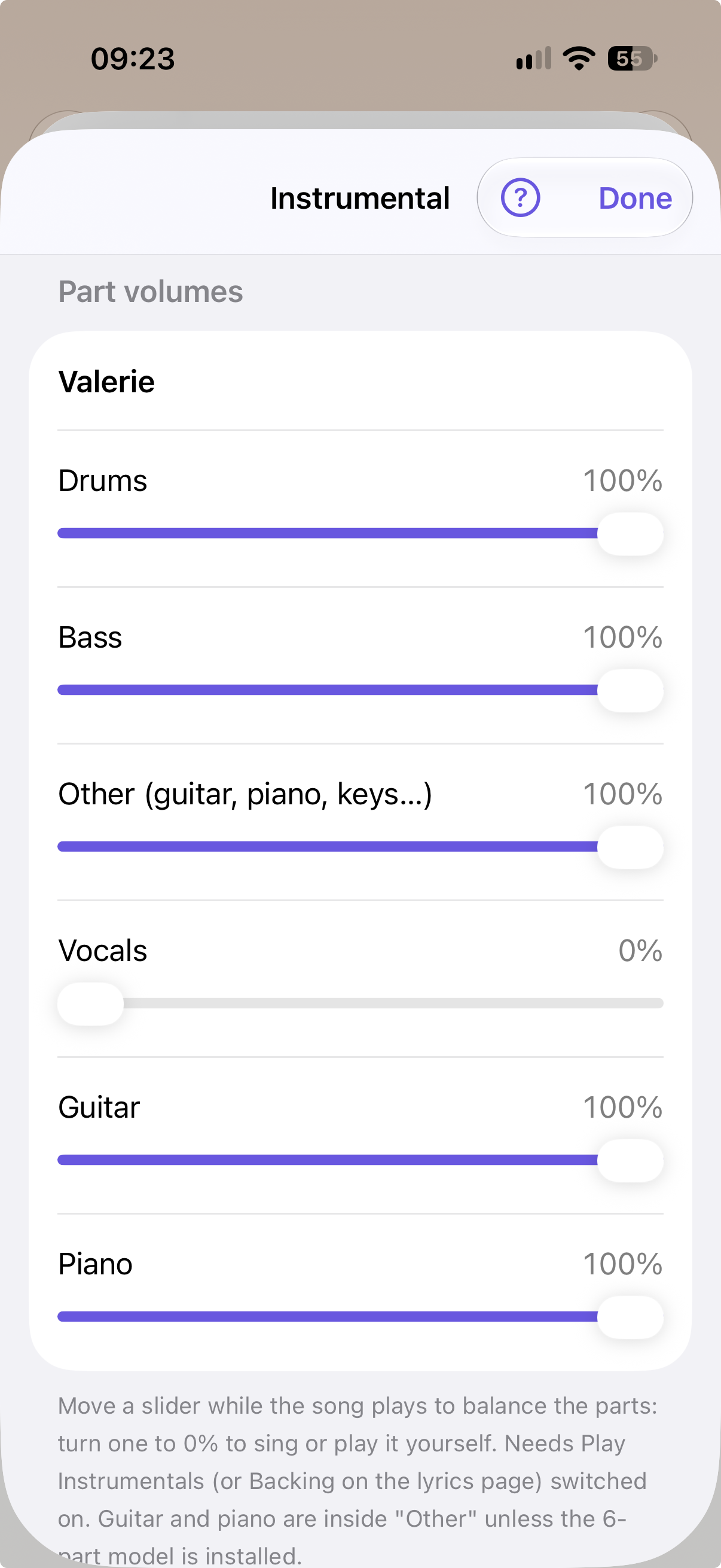
  • On the Lyrics page tap Parts (or ••• ▸ Remove Vocals…). The song is split on your phone into drums, bass, vocals, guitar, piano and other. It takes several minutes and the screen must stay on.
  • When it finishes you see the part sliders. Turn one to 0% to sing or play it yourself. The Backing track and options dropdown holds the rest.
  • Original / Backing on the Lyrics page switches between the full song and your mix of parts.
Vocals are rarely removed perfectly, so you may hear faint traces.
Splitting a song into parts

Lyrics, timing and Auto-Time

  • Open the lyrics editor and paste lyrics, scan a printed sheet with the camera, or import a .lrc or .txt file. Tidy Text cleans up pasted lyrics.
  • Press Start Tapping, play the song and tap each line as it is sung. Leave part-way and IsoBox offers to carry on later.
  • Auto-Time lines the lyrics up with the song for you, using the isolated vocals when the song has been split. It runs on your phone.
  • Hide timings lets you edit just the words; Delete Lyrics removes them after asking. Closing with unsaved changes asks whether to save.
Lyrics, timing and Auto-Time

Chords

  • Open ••• ▸ Detect Chords by Listening and tap Find Chords Automatically. It takes about half a minute.
  • Optionally type the chords you know the song uses, tick Also find the bass notes, and choose how short a chord can be before it is dropped.
  • Chords appear over the lyrics, and as one scrolling line you can drag. The chord that is sounding is highlighted.
  • Edit Detected Chords lists every chord with its time: change one, nudge it, delete it, or play from it.
Detected chords are a good guess, not a certainty. Check them by ear.
Chords

Recording along

  • Tap the microphone button on the Lyrics page, choose where to start, press Record and sing or play. A count-in plays first.
  • Use headphones so the song is not picked up by the microphone. Speed must be 100% while recording.
  • Your recording becomes another part, so you can balance it with the others.
Recording along

Exporting

  • Mix as Audio saves the song as you hear it now (parts at their volumes, plus your recording). Parts (Stems) saves each part as its own file, in a zip if you like.
  • Lyrics & Chords makes a sheet you can print or share; Timed Lyrics (.lrc) saves synced lyrics for other players.
  • Choose AAC (small) or Apple Lossless / WAV (larger).
Exporting

Backup and Restore

  • Settings ▸ Backup & Restore saves your songs, playlists, lyrics, chords, parts, recordings and settings into one .isobackup file you keep, for example in iCloud Drive.
  • To restore, choose the file; the app restarts and puts everything back. Backups are never sent anywhere unless you share them.
Make a backup before reinstalling the app or moving to a new phone.
Backup and Restore